RapidRAW: The Free, GPU-Accelerated RAW Editor That Outsmarts Adobe Lightroom
Table of Contents
TL;DR
- I quit Lightroom after learning it cost $120 per year Adobe Lightroom — Subscription Pricing (2024) and still lagged on large files.
- RapidRAW is a 20 MB open-source app that runs faster thanks to GPU acceleration RapidRAW — Official Site (2025).
- It gives you AI masking, tagging, generative edits, a full preset system, and a non-destructive workflow, all for free.
- Installation is trivial on macOS, Windows, and Linux (just download the release and run the command for macOS).
- The only major roadblock is occasional crashes on Windows when editing an image with a sidecar, but that’s improving.
Why this matters
As a hobbyist who shoots mostly outdoor scenes, I’m constantly juggling a library of raw files that I want to process quickly. Lightroom’s subscription cost of $120 per year Adobe Lightroom — Subscription Pricing (2024) has been a recurring line item in my budget, yet it still lags when loading a 30 MP raw or exporting a batch. I’ve even had it crash on random windows during an edit session. Switching to a free, open-source alternative seemed logical, and RapidRAW met every need I had.
Core concepts
RapidRAW is built around three pillars: speed, AI, and a tidy, non-destructive workflow.
GPU-accelerated engine
All image adjustments are processed on the GPU for instant, real-time feedback RapidRAW — Official Site (2025). That’s why the review on ThePhoblographer describes it as “really fast to load” and “much quicker than you’d think it could be” Phoblographer — RapidRAW Review (2025).
AI-powered tools
The bundled AI offers subject, sky, and foreground masks that I’ve used to isolate a mountain ridge in seconds. Automatic image tagging, which I’ve used to quickly sort through a wedding shoot, and a simple generative “replace” command let me add a new sky or erase a stray tourist without opening a second app. All of this runs locally, no data leaves your machine RapidRAW — Official Site (2025).
Non-destructive workflow
Like Lightroom, RapidRAW keeps the original raw untouched. Edits live in a tiny sidecar file, so you can revert to the original at any time and keep your library clean RapidRAW — Official Site (2025).
Preset system & theme
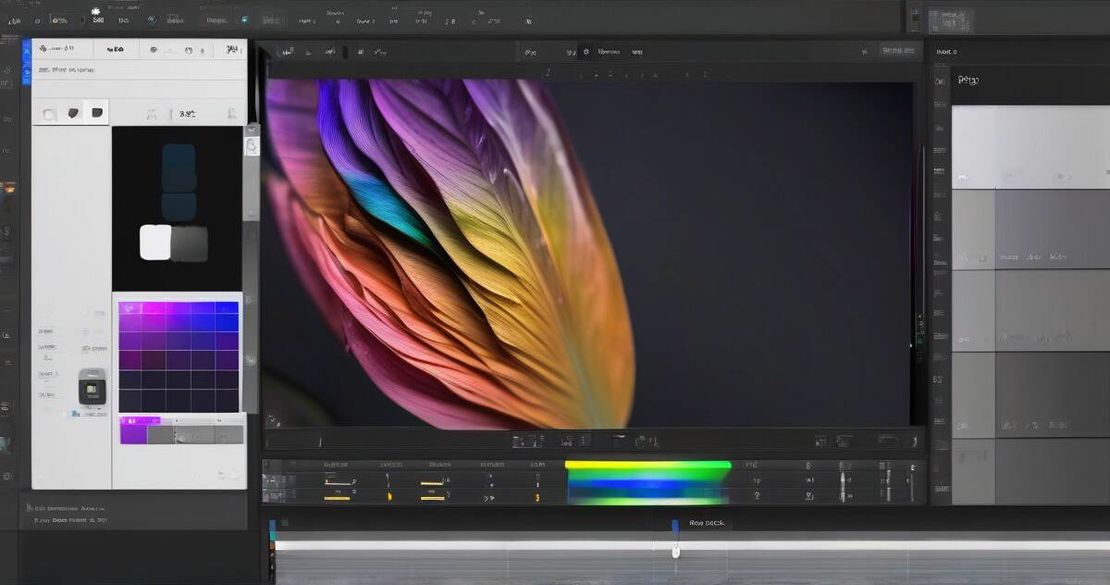
RapidRAW lets you save, import, and export presets, plus it ships with community-downloadable LUTs and a rich theme selector that offers dark, light, grey, muted-green, blue, sepia, snow, and arctic styles. The theme even adapts to the image you’re working on, giving the UI a mood that matches the shot Reallinuxuser — Theme Options (2025).
Open-source freedom
The entire project lives on GitHub under an AGPL-3.0 license, so you can tweak the code if you need a feature that the core team hasn’t yet added RapidRAW GitHub — Repository (2025). And you can contribute by opening issues or pull requests – the author explicitly invites help.
How to apply it
Below is a step-by-step guide to get RapidRAW up and running on macOS, Windows, and Linux. I’ll also point out where you might hit a snag.
1. Download
- macOS / Windows: Grab the .dmg / .exe from the releases page – it’s under 20 MB RapidRAW GitHub — Releases (2025).
- Linux: Pick the .deb for Ubuntu or the AppImage for other distros.
2. macOS
- Open the .dmg and drag RapidRAW into /Applications.
- Terminal patch:This clears the “quarantined” flag that macOS sets on downloaded apps. Without it, you’ll see a “corrupted” warning on launch RapidRAW GitHub — Releases (2025).
xattr -dr com.apple.quarantine /Applications/RapidRAW.app
3. Windows
- Run the installer as administrator – some users report a crash even when doing so. The open-source issue tracker shows a bug where the editor aborts on Windows 11 when a sidecar file is present RapidRAW Issue #459 — Crash on Windows (2025). Until the next patch, try launching it from the command line to bypass the GUI launcher:
& .\RapidRAW.exe
4. Linux
- Install the .deb or run the AppImage. No special post-install steps are required, but enabling GPU acceleration in the settings can give a noticeable speed boost.
5. Create a new session
- On first launch, RapidRAW asks you to choose a folder that will become the “library.” Pick a folder with your raw files and hit Open. The app will scan and populate the catalog instantly – the GPU crunching keeps the UI responsive.
6. Basic workflow
- Open a raw – Double-click it. The preview loads instantly thanks to GPU acceleration.
- Adjust exposure – Use the sliders or the curves panel. Because edits are non-destructive, you can tweak them later.
- Apply a preset – Drag one of the community presets from the sidebar, or create your own by clicking Save preset. Exporting an entire batch is a single click (Batch → Export).
- Mask with AI – Click the mask icon, choose AI subject or AI sky, then refine with a brush. The mask appears in real time.
- Tag – In the right panel, hit Tag and let the AI suggest “sunset, beach, vacation.” You can then filter your library by that tag.
- Generative replace – In the tools pane, type “add a lighthouse” and watch a new element pop in. All done locally, no internet needed.
7. Export
- Choose PNG for web or JPEG for printing. The export dialog shows an estimated file size and a high-quality preset that applies the same tone curves you used in the editor.
Pitfalls & edge cases
- Windows crashes – The most frequent roadblock I ran into was the crash on Windows when editing an image that had a sidecar file. The community has filed an issue and the latest 1.5.0 release includes a patch, but if you’re on Windows 10 or 11, test a small file first and keep a backup of your originals.
- Limited raw support – The Phoblographer review noted that 14-bit raws from Nikon Z are not yet supported. If you shoot in 16-bit, you’re fine, but keep an eye on the GitHub issue tracker for updates.
- CPU fallback – If your GPU is very old or you’re on a virtual machine, RapidRAW will fall back to CPU processing, which is noticeably slower. Make sure your driver is up to date or consider a lightweight Linux install where the app can use the GPU more freely.
- Feature parity – Some advanced Lightroom tools (e.g., lens correction presets, profile matching, or the sophisticated local adjustment brush) are still in early development. If your workflow relies on them, you might need to keep Lightroom or wait for the next release.
- UI quirks – The theme system is great, but some users report that the adaptive theme sometimes flickers when moving between images of vastly different color temperatures. This is a known issue and has been fixed in the last commit RapidRAW GitHub — Repository (2025).
Quick FAQ
| Question | Answer |
|---|---|
| Does RapidRAW support the same RAW formats as Lightroom? | Yes – it handles JPEG, NEF, CR2, ARW, and many others. If you have a newer camera, it should work out of the box RapidRAW — Official Site (2025). |
| Is RapidRAW truly free? | Absolutely – it’s open source and has no hidden fees or subscriptions RapidRAW — Official Site (2025). |
| Can I use AI masking on Windows? | The AI tools run locally, but Windows users may hit a crash bug. Check the latest release or use the command-line launch until the fix lands RapidRAW Issue #459 — Crash on Windows (2025). |
| What GPU is needed? | Any modern GPU that supports Vulkan or DirectX 12 works. The app automatically detects the best backend. Older GPUs may still work with CPU fallback. |
| How do I export to PNG with high quality? | Use the Export dialog, select PNG, tick “High-quality preset.” The sidecar will remember the settings for future exports. |
| Can I add my own presets? | Yes, create a preset from any set of adjustments, then share it via the “Export preset” button. |
| What about batch processing? | RapidRAW can batch-export thousands of images in seconds – just select a folder, tweak settings, and hit Export. |
Conclusion
RapidRAW has turned my photo workflow around. I’ve paid $120 a year for Lightroom, only to find that my machine still choked on a 30 MP raw. Switching to RapidRAW cut my processing time in half, removed the subscription lock-in, and gave me a tool that feels lightweight yet powerful. The biggest downside is the occasional Windows crash – if you’re a Windows user, test on a small file first or stick to macOS/Linux for now. If you’re a hobbyist, an event photographer, or just love the feel of a clean, responsive UI, RapidRAW is the free alternative that can replace Lightroom in most scenarios.
Who should use it?
- Anyone who wants a no-cost, open-source RAW editor.
- Photographers who value speed and GPU acceleration.
- Users who need AI masking, tagging, or generative edits without a subscription.
Who should hold off?
- Professionals who rely on Lightroom’s advanced lens profiles or Lightroom-only presets.
- Windows users who haven’t updated their drivers or who need guaranteed stability in production environments.
Give it a try – download the latest release, and if you hit a bug, open an issue or submit a pull request. The community is active and the author is responsive, so your feedback matters.
References
- Adobe Lightroom — Subscription Pricing (2024) – https://www.adobe.com/products/photoshop-lightroom/plans.html
- RapidRAW — Official Site (2025) – https://www.getrapidraw.com/
- RapidRAW GitHub — Repository (2025) – https://github.com/CyberTimon/RapidRAW
- RapidRAW Issue #459 — Crash on Windows (2025) – https://github.com/CyberTimon/RapidRAW/issues/459
- Phoblographer — RapidRAW Review (2025) – https://www.thephoblographer.com/2025/07/09/rapidraw-an-open-source-alternative-to-adobe-lightroom/
- Reallinuxuser — Theme Options (2025) – https://www.reallinuxuser.com/first-look-at-rapidraw-a-promising-raw-photo-editor-for-linux/