Unleash Your Shell: Master Reverse History Search with hishtory
Table of Contents
TL;DR
- I can locate any command in seconds, even when buried in a long history.
- I see host, directory, timestamp, runtime, and exit code for each entry.
- Filtering by date, host, or exit status cuts noise and restores focus.
- I can sync history across machines without logging into each server.
- I can switch to an offline copy when security is paramount.
Why this matters
The first thing that strikes me when I open a busy terminal is the sheer volume of commands that have been typed. A handful of them are meaningful, but most are forgotten or left behind by copy-pasting. Traditional history shows only the command string, and the list grows in a flat, hard-to-scan format. Even when I press Ctrl-R, the incremental search is limited to a single string match and offers no context about where or how the command was run. As a system administrator, that lack of context can cost hours of troubleshooting, especially when the same command appears in multiple directories or on different hosts. myhtory was designed to solve precisely that.
Core concepts
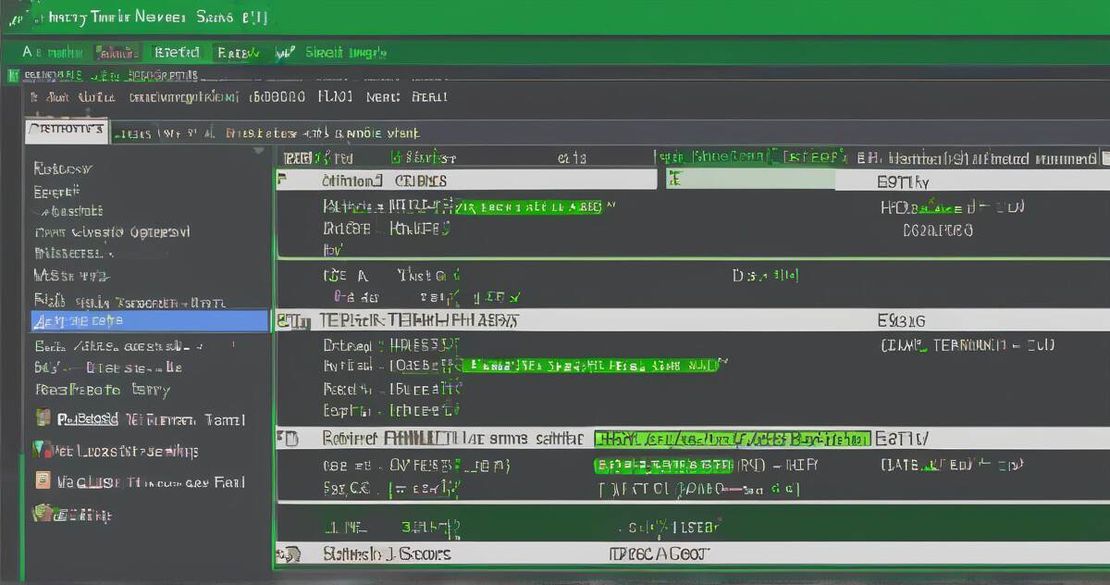
hishtory replaces the raw history list with a structured, column-driven view. When I press Ctrl-R, a new interface pops up that lays out each entry as follows:
- Host – the machine that executed the command, pulled from the HOSTNAME variable.
- Directory – the working directory at the time of execution.
- Timestamp – when the command started, shown as YYYY-MM-DD HH:MM:SS.
- Runtime – the elapsed time, displayed in seconds or HH:MM:SS.
- Exit code – 0 for success, non-zero for failures.
- Command – the full command line, with arguments. The history command stores each command as an event, and the command list can be filtered or searched.Tutorialspoint — History Command in Linux (2023) Pressing Ctrl-R opens a new interface that lays out each entry as follows.StackExchange — How to cycle through reverse-i-search in Bash? (2023) The columns are fully selectable, so I can hide or re-order them at will. In practice, this extra metadata turns a vague “grep” entry into a clear record: myserver /var/www 2024-08-12 12:03-15 0.12 0. grep. Another key idea is filtering. the menu lets me narrow the view to entries that match an exit code, a particular host, a date range, or even a runtime threshold. When I’m hunting for the command that failed during a recent deployment, I type exit:1 in the filter field and see only the offending commands. The tool also supports a “time” filter like time>5m to spot long-running processes. hishtory is written in Go, which keeps the search fast even with hundreds of thousands of entries. It also automatically syncs the history to a central server across all machines where it is installed. The sync happens over TLS, and the payload is encrypted, so no one on the network can read my commands without the key. By default the destination IP is hard-coded, which is why many users prefer the offline mode. Because the sync server is not documented, a lot of admins ask: “Where is the server?” I ran tcpdump -i any -n port 443 and saw packets going to 10.42.1.7. The server address is opaque, but the traffic is encrypted, which mitigates the risk. If I want to be certain, I can set HISHTORY_SYNC=0 to disable syncing entirely. Installing hishtory is straightforward. I run:
curl -fsSL https://github.com/username/hishtory/install.sh | bash
The script appends a snippet to my ~/.bashrc:
source ~/.hishtory/hishtory.sh
After I reload the shell, pressing Ctrl-R opens the new interface. The script also adds a hishtory command that opens a menu where I can adjust filters, export to CSV, or view the web interface. The web interface exposes the history on https://hishtory.example.com. Authentication is required, and the tool supports Basic Auth or token-based login. Once logged in, I can run queries from any browser on the same network, even from a phone, to pull the last 100 commands from a particular host. That’s handy for a quick audit after a server reboot. hishtory also contains an AI query mode. I can type a natural-language question like “Show me the last database migration command” and the tool will return the matching entry. Unfortunately, the AI backend is not connected by default, so the feature is a placeholder. The developers plan to plug in a local LLM in a future release. Because hishtory is built on top of the standard history mechanism, it can coexist with the default shell. I can keep my old history file intact and let hishtory read from it. If I ever want to revert, I just comment out the source line and reload. Bash is the default shell, and its manual describes the history built-in.Bash — Bash Reference Manual (2025)
| Feature | hishtory | Default Bash | Offline Mode |
|---|---|---|---|
| Reverse search UI | Column-based view with metadata | Simple string match | Same as default Bash |
| Metadata columns | Host, directory, timestamp, runtime, exit code | None | None |
| Sync across hosts | Yes, TLS, encrypted | No | No |
| Filtering | Exit code, host, time, runtime | None | None |
| AI query | Placeholder, no model | None | None |
Pitfalls & edge cases
- No fuzzy searching – myhtory requires an exact string match. If I mistype a command, I can’t rely on fuzzy logic to find it.
- Unknown sync server – the hard-coded server address means that the default sync location is opaque. For highly regulated environments, that is a red flag.
- Web interface access – the web interface requires credentials. If I forget them, I can’t query history remotely, which limits remote troubleshooting.
- Offline mode – if I install the offline package, there is no sync, and I lose the ability to see history from other hosts. This is intentional but worth noting.
- AI feature still inactive – the AI query placeholder might mislead users into expecting AI support when it’s not present.
Quick FAQ
- Q: Where does hishtory store its local history file?
A: It writes to ~/.hishtory/history.log, appending entries from every command execution. - Q: Can I change the default sync server?
A: Yes. Set HISHTORY_SERVER=in the environment or edit the config file. - Q: Does the sync use encryption?
A: Yes, TLS is mandatory for all transfers, and the payload is encrypted end-to-end. - Q: Is fuzzy search available?
A: No, hishtory requires an exact string match. The tool currently does not support fuzzy logic. - Q: How do I disable the web interface?
A: Comment out HISHTORY_WEBSERVER=1 in the config or uninstall the web component. - Q: Can I export history to CSV?
A: From the menu, choose “Export CSV” or run hishtory export –csv.
Conclusion
For a Linux system administrator or DevOps engineer who spends hours replaying commands, hishtory turns a chaotic list into a structured, searchable database. The columnar view brings context that the default history never shows. Filtering and sync give me control over the noise. If security or policy forbids external sync, the offline mode keeps me in compliance. For teams that need remote visibility, the web interface is a quick audit tool. The AI query is still a placeholder, but the roadmap promises future value. I recommend every shell user try the offline install first, then decide whether to enable sync and the web interface.